


 Microsoft Entra ID
 General
Tutorial: Basic Active Directory environment
In brief
The tutorial’s setup instructions and PowerShell examples were reformatted while retaining the same commands, IP values, and guidance.
What Entra admins need to know
No action is required; administrators can continue using the documented steps.
This editorial summary was generated by AI from the documentation changes. Verify important details in the full Microsoft Learn article.
Documentation change
 View on Microsoft Learn
The comparison below shows only the changed extract. Use the full-page view for complete context.
Tutorial: Basic Active Directory environment
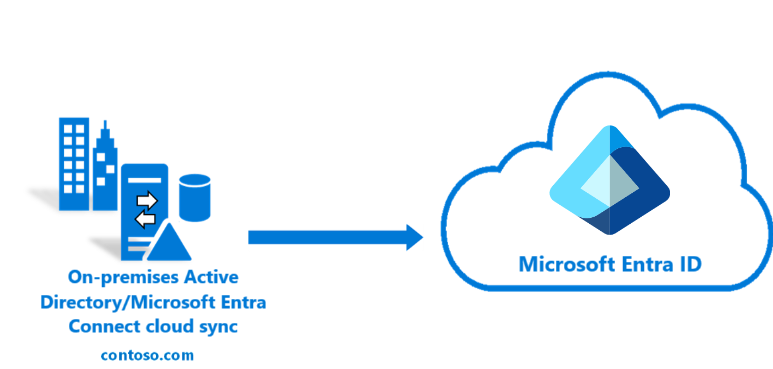
This tutorial walks you through creating a basic Active Directory environment.
$VHDSize = '64424509440'
#Create New Virtual Machine New-VM -Name $VMName -MemoryStartupBytes 16GB -BootDevice VHD -Path $Path -NewVHDPath $VHDPath -NewVHDSizeBytes $VHDSize -Generation 2 -Switch $Switch
#Set the memory to be non-dynamic Set-VMMemory $VMName -DynamicMemoryEnabled $false $DVDDrive = Get-VMDvdDrive -VMName $VMName
#Configure Virtual Machine to Boot from DVD Set-VMFirmware -VMName $VMName -FirstBootDevice $DVDDrive
## Complete the operating system deployment

```powershell
#Declare variables
$ipaddress = "10.0.1.117"
$ipprefix = "24"
$ipgw = "10.0.1.1"
$ipdns = "10.0.1.117"
$ipdns2 = "8.8.8.8"
$ipif = (Get-NetAdapter).ifIndex
$featureLogPath = "c:\poshlog\featurelog.txt"
$newname = "DC1"
$addsTools = "RSAT-AD-Tools"

#Set static IP address
New-NetIPAddress -IPAddress $ipaddress -PrefixLength $ipprefix -InterfaceIndex $ipif -DefaultGateway $ipgw

# Set the DNS servers
Set-DnsClientServerAddress -InterfaceIndex $ipif -ServerAddresses ($ipdns, $ipdns2)

#Rename the computer
Rename-Computer -NewName $newname -force

#Install features
New-Item $featureLogPath -ItemType file -Force
Add-WindowsFeature $addsTools
Get-WindowsFeature | Where installed >>$featureLogPath

#Restart the computer
Restart-Computer
$ForestMode = "WinThreshold" $LogPath = "c:\windows\NTDS" $SysVolPath = "c:\windows\SYSVOL" $featureLogPath = "c:\poshlog\featurelog.txt" $Password = "Pass1w0rd" $SecureString = ConvertTo-SecureString $Password -AsPlainText -Force
#Install AD DS, DNS and GPMC start-job -Name addFeature -ScriptBlock { Add-WindowsFeature -Name "ad-domain-services" -IncludeAllSubFeature -IncludeManagementTools Add-WindowsFeature -Name "dns" -IncludeAllSubFeature -IncludeManagementTools Add-WindowsFeature -Name "gpmc" -IncludeAllSubFeature -IncludeManagementTools } Wait-Job -Name addFeature Get-WindowsFeature | Where installed >>$featureLogPath
#Create New AD Forest
the Azure AD Connect password hash sync tutorial.
DISCLAIMER:
Copyright (c) Microsoft Corporation. All rights reserved. This
script is made available to you without any express, implied or
statutory warranty, not even the implied warranty of
merchantability or fitness for a particular purpose, or the
warranty of title or non-infringement. The entire risk of the
use or the results from the use of this script remains with you.
Optional: Another server and forest
The following is an optional section that provides steps to creating another server and or forest. This can be used in some of the more advanced tutorials such as Pilot for Microsoft Entra Connect to cloud sync.
If you only need another server, you can stop after the - Create the virtual machine step and join the server to the existing domain that you previously created.
Create a virtual machine
$VHDSize = '64424509440'
#Create New Virtual Machine New-VM -Name $VMName -MemoryStartupBytes 16GB -BootDevice VHD -Path $Path -NewVHDPath $VHDPath -NewVHDSizeBytes $VHDSize -Generation 2 -Switch $Switch
#Set the memory to be non-dynamic Set-VMMemory $VMName -DynamicMemoryEnabled $false
the Azure AD Connect password hash sync tutorial.
DISCLAIMER:
Copyright (c) Microsoft Corporation. All rights reserved. This
script is made available to you without any express, implied or
statutory warranty, not even the implied warranty of
merchantability or fitness for a particular purpose, or the
warranty of title or non-infringement. The entire risk of the
use or the results from the use of this script remains with you.
#Declare variables $ipaddress = "10.0.1.118" $ipprefix = "24" $ipgw = "10.0.1.1" $ipdns = "10.0.1.118" $ipdns2 = "8.8.8.8" $ipif = (Get-NetAdapter).ifIndex $featureLogPath = "c:\poshlog\featurelog.txt" $newname = "CP1" $addsTools = "RSAT-AD-Tools"
#Set static IP address New-NetIPAddress -IPAddress $ipaddress -PrefixLength $ipprefix -InterfaceIndex $ipif -DefaultGateway $ipgw
#Set the DNS servers Set-DnsClientServerAddress -InterfaceIndex $ipif -ServerAddresses ($ipdns, $ipdns2)
#Rename the computer Rename-Computer -NewName $newname -force
#Install features New-Item $featureLogPath -ItemType file -Force Add-WindowsFeature $addsTools Get-WindowsFeature | Where installed >>$featureLogPath
#Restart the computer Restart-Computer
### Create a Windows Server AD environment
#       the Azure AD Connect password hash sync tutorial.
#
# DISCLAIMER:
# Copyright (c) Microsoft Corporation. All rights reserved. This
# script is made available to you without any express, implied or
# statutory warranty, not even the implied warranty of
# merchantability or fitness for a particular purpose, or the
# warranty of title or non-infringement. The entire risk of the
# use or the results from the use of this script remains with you.
#
#
$DatabasePath = "c:\windows\NTDS"
$DomainMode = "WinThreshold"
$DomainName = "fabrikam.com"
$DomaninNetBIOSName$DomainNetBIOSName = "FABRIKAM"
$ForestMode = "WinThreshold"
$LogPath = "c:\windows\NTDS"
$SysVolPath = "c:\windows\SYSVOL"
$featureLogPath = "c:\poshlog\featurelog.txt"
$Password = "Pass1w0rd"
$SecureString = ConvertTo-SecureString $Password -AsPlainText -Force

#Install AD DS, DNS and GPMC
start-job -Name addFeature -ScriptBlock {
Add-WindowsFeature -Name "ad-domain-services" -IncludeAllSubFeature -IncludeManagementTools
Add-WindowsFeature -Name "dns" -IncludeAllSubFeature -IncludeManagementTools
Add-WindowsFeature -Name "gpmc" -IncludeAllSubFeature -IncludeManagementTools }
Wait-Job -Name addFeature
Get-WindowsFeature | Where installed >>$featureLogPath

#Create New AD Forest
1. Open up the PowerShell ISE as Administrator.
2. Run the following script.

```powershell
# Filename:  4_CreateUser_CP.ps1
# Description: Creates a user in Active Directory. This is part of
#       the Azure AD Connect password hash sync tutorial.
#
# DISCLAIMER:
# Copyright (c) Microsoft Corporation. All rights reserved. This
# script is made available to you without any express, implied or
# statutory warranty, not even the implied warranty of
# merchantability or fitness for a particular purpose, or the
# warranty of title or non-infringement. The entire risk of the
# use or the results from the use of this script remains with you.
#
#
## Conclusion
Now you have an environment that can be used for existing tutorials and to test other features cloud sync provides.

## Next steps

- [What is provisioning?](../what-is-provisioning.md)
- [What is Microsoft Entra Cloud Sync?](what-is-cloud-sync.md)
@@ -9,7 +9,7 @@ ms.custom: sfi-image-nochange # Tutorial: Basic Active Directory environment -This tutorial walks you through creating a basic Active Directory environment. +This tutorial walks you through creating a basic Active Directory environment.  @@ -46,7 +46,7 @@ The first thing you need to do is to create a virtual machine. This virtual mach $VHDSize = '64424509440' #Create New Virtual Machine- New-VM -Name $VMName -MemoryStartupBytes 16GB -BootDevice VHD -Path $Path -NewVHDPath $VHDPath -NewVHDSizeBytes $VHDSize -Generation 2 -Switch $Switch + New-VM -Name $VMName -MemoryStartupBytes 16GB -BootDevice VHD -Path $Path -NewVHDPath $VHDPath -NewVHDSizeBytes $VHDSize -Generation 2 -Switch $Switch #Set the memory to be non-dynamic Set-VMMemory $VMName -DynamicMemoryEnabled $false@@ -58,7 +58,7 @@ The first thing you need to do is to create a virtual machine. This virtual mach $DVDDrive = Get-VMDvdDrive -VMName $VMName #Configure Virtual Machine to Boot from DVD- Set-VMFirmware -VMName $VMName -FirstBootDevice $DVDDrive + Set-VMFirmware -VMName $VMName -FirstBootDevice $DVDDrive ``` ## Complete the operating system deployment@@ -83,31 +83,31 @@ Now that you have a virtual machine up, you need to do a few things prior to ins ```powershell #Declare variables- $ipaddress = "10.0.1.117" - $ipprefix = "24" - $ipgw = "10.0.1.1" + $ipaddress = "10.0.1.117"+ $ipprefix = "24"+ $ipgw = "10.0.1.1" $ipdns = "10.0.1.117"- $ipdns2 = "8.8.8.8" - $ipif = (Get-NetAdapter).ifIndex - $featureLogPath = "c:\poshlog\featurelog.txt" + $ipdns2 = "8.8.8.8"+ $ipif = (Get-NetAdapter).ifIndex+ $featureLogPath = "c:\poshlog\featurelog.txt" $newname = "DC1"- $addsTools = "RSAT-AD-Tools" + $addsTools = "RSAT-AD-Tools" #Set static IP address- New-NetIPAddress -IPAddress $ipaddress -PrefixLength $ipprefix -InterfaceIndex $ipif -DefaultGateway $ipgw + New-NetIPAddress -IPAddress $ipaddress -PrefixLength $ipprefix -InterfaceIndex $ipif -DefaultGateway $ipgw # Set the DNS servers Set-DnsClientServerAddress -InterfaceIndex $ipif -ServerAddresses ($ipdns, $ipdns2) - #Rename the computer - Rename-Computer -NewName $newname -force + #Rename the computer+ Rename-Computer -NewName $newname -force - #Install features - New-Item $featureLogPath -ItemType file -Force - Add-WindowsFeature $addsTools - Get-WindowsFeature | Where installed >>$featureLogPath + #Install features+ New-Item $featureLogPath -ItemType file -Force+ Add-WindowsFeature $addsTools+ Get-WindowsFeature | Where installed >>$featureLogPath - #Restart the computer + #Restart the computer Restart-Computer ``` @@ -126,16 +126,16 @@ Now that you've created and renamed the VM created, and it has a static IP addre $ForestMode = "WinThreshold" $LogPath = "c:\windows\NTDS" $SysVolPath = "c:\windows\SYSVOL"- $featureLogPath = "c:\poshlog\featurelog.txt" + $featureLogPath = "c:\poshlog\featurelog.txt" $Password = "Pass1w0rd" $SecureString = ConvertTo-SecureString $Password -AsPlainText -Force - #Install AD DS, DNS and GPMC - start-job -Name addFeature -ScriptBlock { - Add-WindowsFeature -Name "ad-domain-services" -IncludeAllSubFeature -IncludeManagementTools - Add-WindowsFeature -Name "dns" -IncludeAllSubFeature -IncludeManagementTools - Add-WindowsFeature -Name "gpmc" -IncludeAllSubFeature -IncludeManagementTools } - Wait-Job -Name addFeature + #Install AD DS, DNS and GPMC+ start-job -Name addFeature -ScriptBlock {+ Add-WindowsFeature -Name "ad-domain-services" -IncludeAllSubFeature -IncludeManagementTools+ Add-WindowsFeature -Name "dns" -IncludeAllSubFeature -IncludeManagementTools+ Add-WindowsFeature -Name "gpmc" -IncludeAllSubFeature -IncludeManagementTools }+ Wait-Job -Name addFeature Get-WindowsFeature | Where installed >>$featureLogPath #Create New AD Forest@@ -154,11 +154,11 @@ Now that you have our Active Directory environment, you need to create a test ac # the Azure AD Connect password hash sync tutorial. # # DISCLAIMER:- # Copyright (c) Microsoft Corporation. All rights reserved. This - # script is made available to you without any express, implied or - # statutory warranty, not even the implied warranty of - # merchantability or fitness for a particular purpose, or the - # warranty of title or non-infringement. The entire risk of the + # Copyright (c) Microsoft Corporation. All rights reserved. This+ # script is made available to you without any express, implied or+ # statutory warranty, not even the implied warranty of+ # merchantability or fitness for a particular purpose, or the+ # warranty of title or non-infringement. The entire risk of the # use or the results from the use of this script remains with you. # #@@ -211,7 +211,7 @@ Now that you have a Microsoft Entra tenant, you create a Hybrid Identity Adminis ## Optional: Another server and forest The following is an optional section that provides steps to creating another server and or forest. This can be used in some of the more advanced tutorials such as [Pilot for Microsoft Entra Connect to cloud sync](tutorial-pilot-aadc-aadccp.md). -If you only need another server, you can stop after the - **Create the virtual machine** step and join the server to the existing domain that you previously created. +If you only need another server, you can stop after the - **Create the virtual machine** step and join the server to the existing domain that you previously created. ### Create a virtual machine @@ -237,7 +237,7 @@ If you only need another server, you can stop after the - **Create the virtual m $VHDSize = '64424509440' #Create New Virtual Machine- New-VM -Name $VMName -MemoryStartupBytes 16GB -BootDevice VHD -Path $Path -NewVHDPath $VHDPath -NewVHDSizeBytes $VHDSize -Generation 2 -Switch $Switch + New-VM -Name $VMName -MemoryStartupBytes 16GB -BootDevice VHD -Path $Path -NewVHDPath $VHDPath -NewVHDSizeBytes $VHDSize -Generation 2 -Switch $Switch #Set the memory to be non-dynamic Set-VMMemory $VMName -DynamicMemoryEnabled $false@@ -278,42 +278,42 @@ Now that you have a virtual machine up, you need to do a few things before insta # the Azure AD Connect password hash sync tutorial. # # DISCLAIMER:- # Copyright (c) Microsoft Corporation. All rights reserved. This - # script is made available to you without any express, implied or - # statutory warranty, not even the implied warranty of - # merchantability or fitness for a particular purpose, or the - # warranty of title or non-infringement. The entire risk of the + # Copyright (c) Microsoft Corporation. All rights reserved. This+ # script is made available to you without any express, implied or+ # statutory warranty, not even the implied warranty of+ # merchantability or fitness for a particular purpose, or the+ # warranty of title or non-infringement. The entire risk of the # use or the results from the use of this script remains with you. # # # # #Declare variables- $ipaddress = "10.0.1.118" - $ipprefix = "24" - $ipgw = "10.0.1.1" + $ipaddress = "10.0.1.118"+ $ipprefix = "24"+ $ipgw = "10.0.1.1" $ipdns = "10.0.1.118"- $ipdns2 = "8.8.8.8" - $ipif = (Get-NetAdapter).ifIndex - $featureLogPath = "c:\poshlog\featurelog.txt" + $ipdns2 = "8.8.8.8"+ $ipif = (Get-NetAdapter).ifIndex+ $featureLogPath = "c:\poshlog\featurelog.txt" $newname = "CP1"- $addsTools = "RSAT-AD-Tools" + $addsTools = "RSAT-AD-Tools" #Set static IP address- New-NetIPAddress -IPAddress $ipaddress -PrefixLength $ipprefix -InterfaceIndex $ipif -DefaultGateway $ipgw + New-NetIPAddress -IPAddress $ipaddress -PrefixLength $ipprefix -InterfaceIndex $ipif -DefaultGateway $ipgw #Set the DNS servers Set-DnsClientServerAddress -InterfaceIndex $ipif -ServerAddresses ($ipdns, $ipdns2) - #Rename the computer - Rename-Computer -NewName $newname -force + #Rename the computer+ Rename-Computer -NewName $newname -force - #Install features - New-Item $featureLogPath -ItemType file -Force - Add-WindowsFeature $addsTools - Get-WindowsFeature | Where installed >>$featureLogPath + #Install features+ New-Item $featureLogPath -ItemType file -Force+ Add-WindowsFeature $addsTools+ Get-WindowsFeature | Where installed >>$featureLogPath - #Restart the computer + #Restart the computer Restart-Computer ``` ### Create a Windows Server AD environment@@ -328,11 +328,11 @@ Now that you've created and renamed the VM, and it has a static IP address, you' # the Azure AD Connect password hash sync tutorial. # # DISCLAIMER:- # Copyright (c) Microsoft Corporation. All rights reserved. This - # script is made available to you without any express, implied or - # statutory warranty, not even the implied warranty of - # merchantability or fitness for a particular purpose, or the - # warranty of title or non-infringement. The entire risk of the + # Copyright (c) Microsoft Corporation. All rights reserved. This+ # script is made available to you without any express, implied or+ # statutory warranty, not even the implied warranty of+ # merchantability or fitness for a particular purpose, or the+ # warranty of title or non-infringement. The entire risk of the # use or the results from the use of this script remains with you. # #@@ -342,20 +342,20 @@ Now that you've created and renamed the VM, and it has a static IP address, you' $DatabasePath = "c:\windows\NTDS" $DomainMode = "WinThreshold" $DomainName = "fabrikam.com"- $DomaninNetBIOSName = "FABRIKAM"+ $DomainNetBIOSName = "FABRIKAM" $ForestMode = "WinThreshold" $LogPath = "c:\windows\NTDS" $SysVolPath = "c:\windows\SYSVOL"- $featureLogPath = "c:\poshlog\featurelog.txt" + $featureLogPath = "c:\poshlog\featurelog.txt" $Password = "Pass1w0rd" $SecureString = ConvertTo-SecureString $Password -AsPlainText -Force - #Install AD DS, DNS and GPMC - start-job -Name addFeature -ScriptBlock { - Add-WindowsFeature -Name "ad-domain-services" -IncludeAllSubFeature -IncludeManagementTools - Add-WindowsFeature -Name "dns" -IncludeAllSubFeature -IncludeManagementTools - Add-WindowsFeature -Name "gpmc" -IncludeAllSubFeature -IncludeManagementTools } - Wait-Job -Name addFeature + #Install AD DS, DNS and GPMC+ start-job -Name addFeature -ScriptBlock {+ Add-WindowsFeature -Name "ad-domain-services" -IncludeAllSubFeature -IncludeManagementTools+ Add-WindowsFeature -Name "dns" -IncludeAllSubFeature -IncludeManagementTools+ Add-WindowsFeature -Name "gpmc" -IncludeAllSubFeature -IncludeManagementTools }+ Wait-Job -Name addFeature Get-WindowsFeature | Where installed >>$featureLogPath #Create New AD Forest@@ -368,17 +368,17 @@ Now that you have our Active Directory environment, you need to a test account. 1. Open up the PowerShell ISE as Administrator. 2. Run the following script. - ```powershell + ```powershell # Filename: 4_CreateUser_CP.ps1 # Description: Creates a user in Active Directory. This is part of # the Azure AD Connect password hash sync tutorial. # # DISCLAIMER:- # Copyright (c) Microsoft Corporation. All rights reserved. This - # script is made available to you without any express, implied or - # statutory warranty, not even the implied warranty of - # merchantability or fitness for a particular purpose, or the - # warranty of title or non-infringement. The entire risk of the + # Copyright (c) Microsoft Corporation. All rights reserved. This+ # script is made available to you without any express, implied or+ # statutory warranty, not even the implied warranty of+ # merchantability or fitness for a particular purpose, or the+ # warranty of title or non-infringement. The entire risk of the # use or the results from the use of this script remains with you. # #@@ -404,7 +404,7 @@ Now that you have our Active Directory environment, you need to a test account. ## Conclusion Now you have an environment that can be used for existing tutorials and to test other features cloud sync provides. -## Next steps +## Next steps - [What is provisioning?](../what-is-provisioning.md) - [What is Microsoft Entra Cloud Sync?](what-is-cloud-sync.md)